Browser Extension
The Stashmark browser extension saves the page you are on with a single click, lets you highlight text on any site, and keeps your whole library one keystroke away. It works in Chrome, Firefox, Edge, Brave, and other Chromium-based browsers.
Install
- Chrome / Edge / Brave
- Firefox
- Visit the Chrome Web Store and search for "Stashmark".
- Click Add to Chrome (the same listing works in Edge and Brave).
- Click the puzzle-piece icon in your toolbar and pin Stashmark so it is always one click away.
- Visit Firefox Add-ons and search for "Stashmark".
- Click Add to Firefox.
- The Stashmark icon appears in your toolbar.
Sign in
Click the Stashmark icon and sign in once. You can use:
- A magic link - enter your email and click the link we send. No password to remember.
- Email and password - if you set one on your account.
- Two-factor code - if you have 2FA enabled, you will be asked for your code after your password.
Your session is stored locally in the browser. You stay signed in until you sign out from Settings, or until you point the extension at a different server.
You need a free account first. Create one at app.stashmark.app, then sign in from the extension with the same email.
Save a page
Open the extension on any page and Stashmark saves it right away, snapshot and all. No dialog to confirm, no button to hunt for.
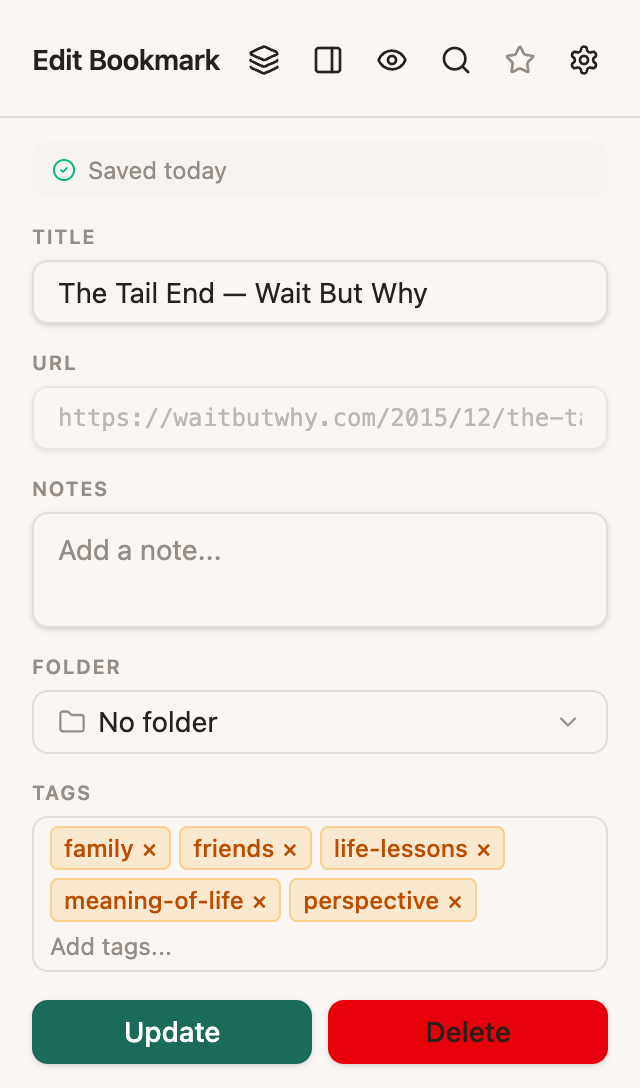
From the popup you can:
- Rename the bookmark by editing the title.
- Add a note for future you.
- File it in a folder from the folder picker.
- Tag it - start typing to reuse an existing tag or create a new one.
- Favorite it with the star.
- Delete it if you saved it by mistake.
Changes save when you click Update.
Press Alt+Shift+S on any page to save it without touching the mouse. You can change this shortcut on your browser's extension-shortcuts page.
Save every open tab
Doing research across a dozen tabs? Open the popup and choose Save all tabs (the stacked-layers icon in the header). Stashmark saves the whole window in one go so you can close the tabs and pick the reading back up later.
Save from the right-click menu
Right-click anywhere and the context menu offers:
- Save to Stashmark - save the current page, or a specific link you right-clicked.
- Save highlight to Stashmark - save selected text as a highlight (see below).
- Save all tabs to Stashmark.
- Open Stashmark Side Panel (Chromium browsers).
Highlight text on any page
Select any passage on any page. A small toolbar appears with a palette of colors - click one to keep the passage in your library. Click a saved highlight again to add a note or change its color.
Prefer the keyboard?
- Alt+Shift+H highlights the current selection in yellow instantly.
- With the color toolbar open, press 1-9 to pick a color.
- Esc dismisses the toolbar.
Highlighting a passage on a page you have not saved yet automatically adds that page to your library, so the highlight always has a home.
See your highlights when you come back
Turn on the Saved-page indicator in Settings and Stashmark will mark pages that are already in your library and paint your highlights back onto them when you revisit.
This is off by default and opt-in for privacy: until you turn it on, Stashmark never checks pages in the background. When you do turn it on, it grants the extension access to the sites you visit and keeps a local index of your saved pages, so it only contacts the server for a page that is already in your library. See Privacy and Security for the details.
Hide highlights without deleting them
Want a clean view for a screenshot or a distraction-free read? Toggle your highlights off and on with the eye icon in the popup header, or press Alt+Shift+V on the page. The state is global and remembered, and your highlights are never deleted - just hidden until you bring them back.
The side panel
On Chromium browsers, open the side panel (the panel icon in the popup header, or the right-click menu) to keep Stashmark docked beside whatever you are reading.
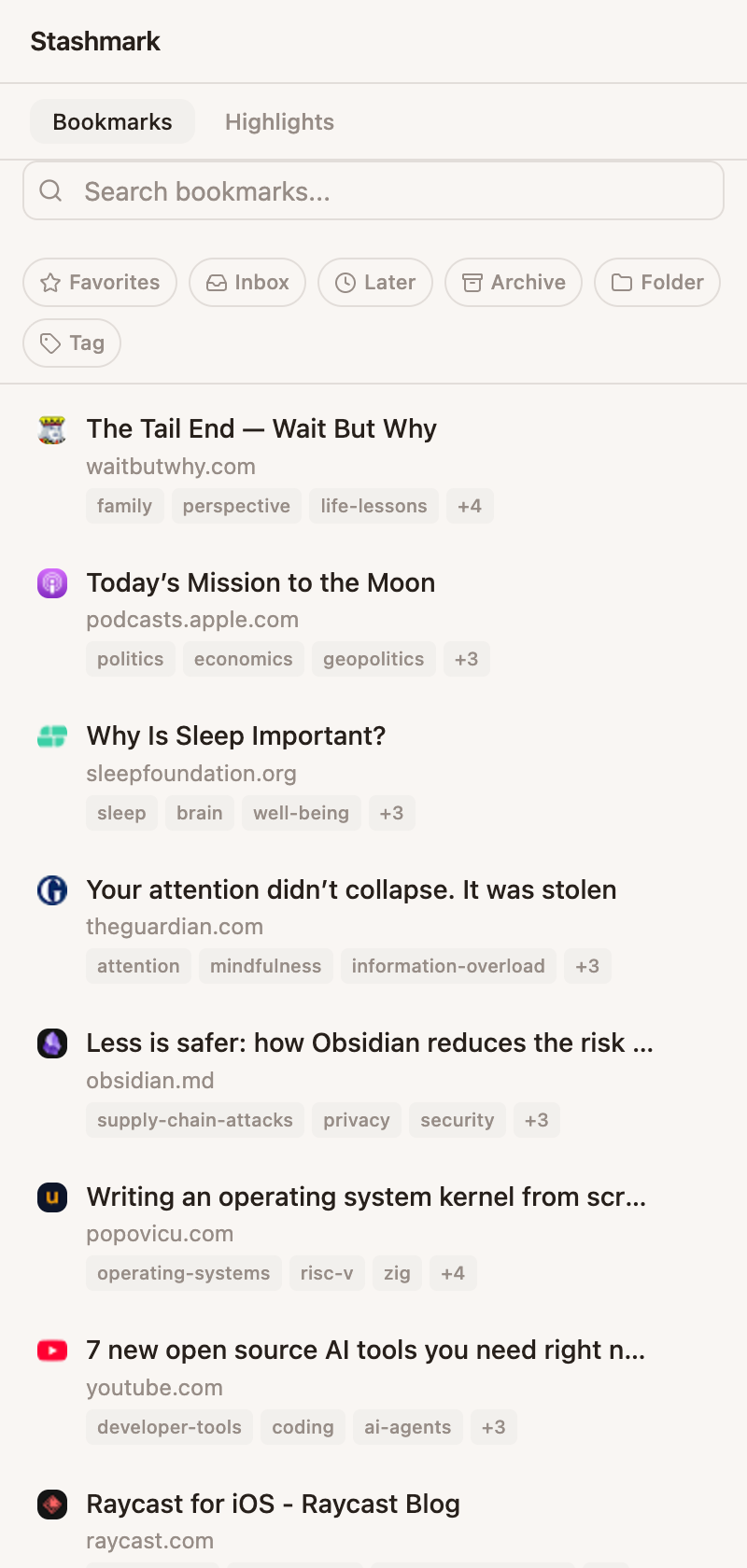
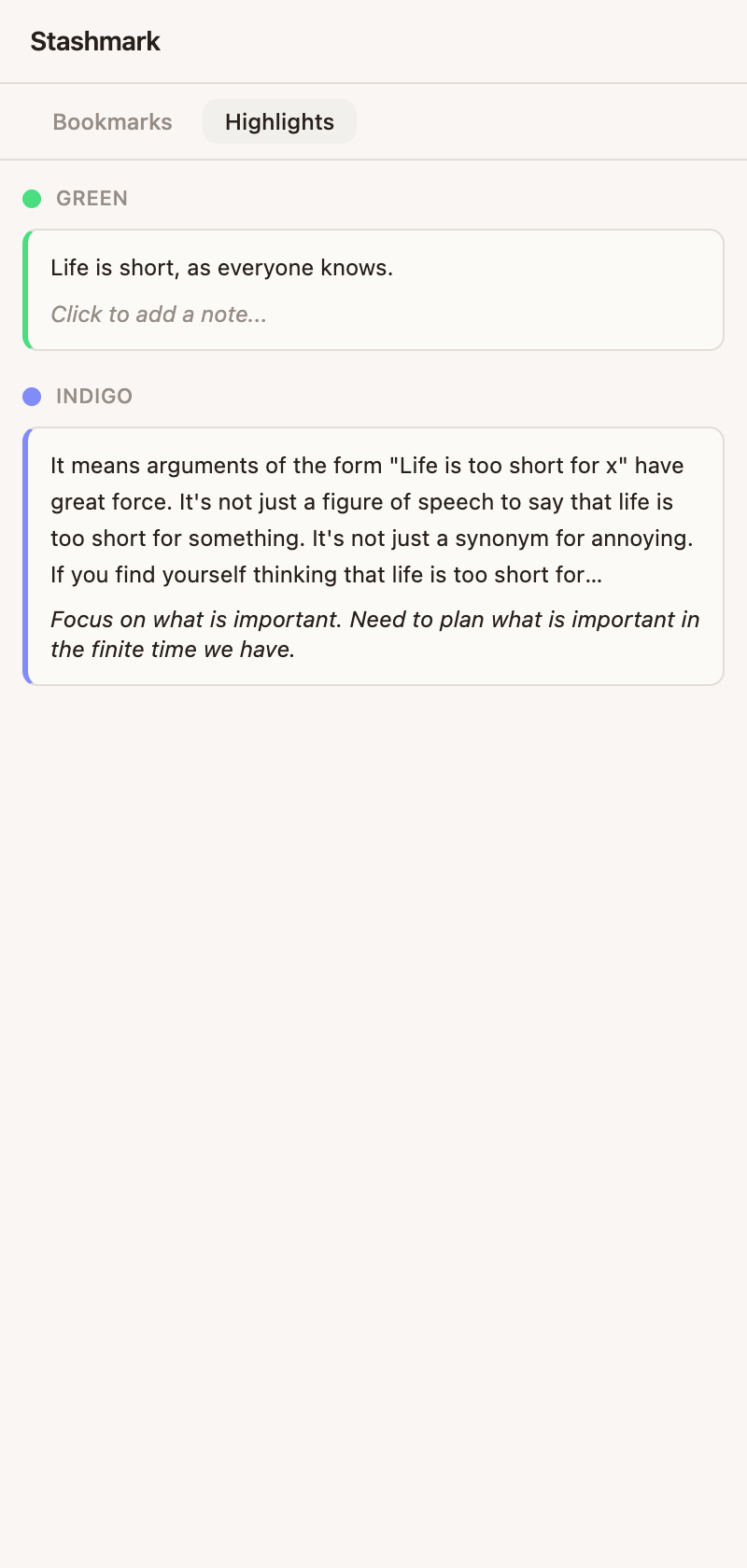
The Bookmarks tab gives you your whole library with search and quick filters (favorites, inbox, later, archive, folder, tag). The Highlights tab shows every highlight you have saved on the page you are currently viewing, notes and all.
Search from the address bar
Type sm in your browser's address bar, press space, then type your query to search your
library without opening anything. Pick a result to jump straight to it.
Settings
Open Settings from the gear icon in the popup header.
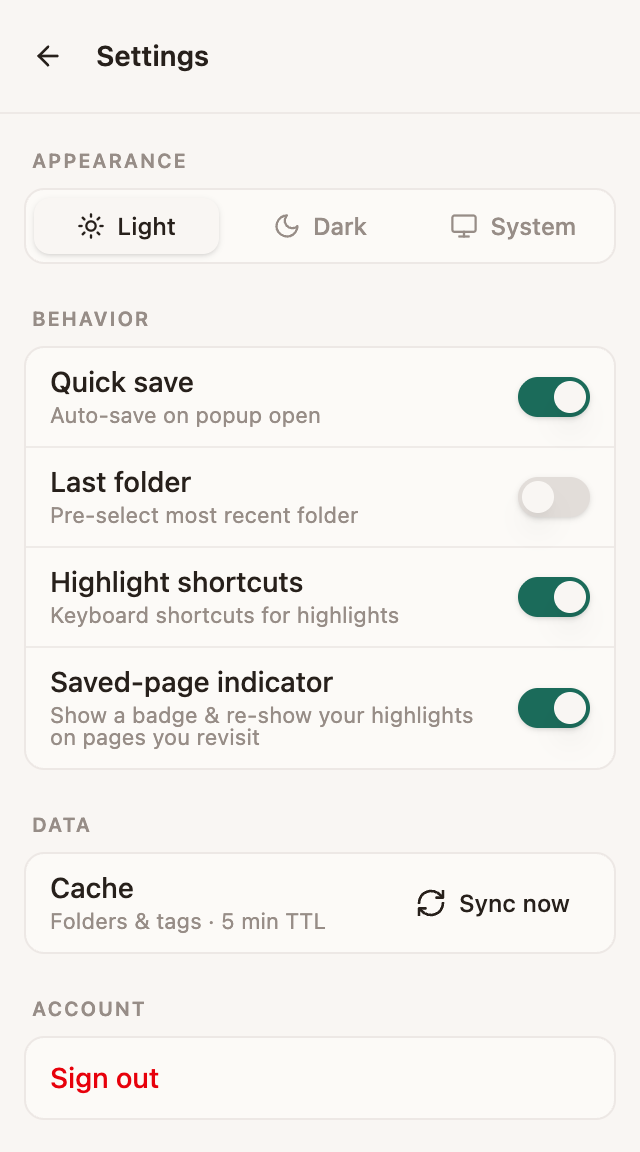
| Setting | What it does |
|---|---|
| Appearance | Light, dark, or follow your system theme. |
| Quick save | Auto-save the page the moment the popup opens. Turn it off to save on demand instead. |
| Last folder | Pre-select the folder you used most recently. |
| Highlight shortcuts | Enable the highlight keyboard shortcuts. |
| Saved-page indicator | Show a badge on saved pages and re-show your highlights on revisit (opt-in, see above). |
| Cache | Folders and tags are cached for five minutes. Use Sync now to refresh immediately. |
Troubleshooting
The popup asks me to sign in every time. Your token was cleared, usually because the server rejected it. Sign in again from the popup.
My highlights are not showing when I revisit a page. The Saved-page indicator is off by default. Turn it on in Settings and grant the site-access permission when prompted. Highlights only re-render on pages that are already in your library.
I see the toolbar when I select text, but the page is not in my library. That is expected - highlighting a new page saves it automatically. Open the popup to confirm it landed, and to add folders or tags.
The side panel option is missing. The side panel is available on Chromium browsers (Chrome, Edge, Brave). On Firefox, use the popup and the on-page highlight tools instead.