Managing Tags
Tags are one of the most flexible ways to organize your bookmarks. Unlike collections (which are hierarchical and limit each bookmark to one), tags are flat and you can attach as many as you like to a single bookmark. A page about "deploying Rust to Kubernetes" might sit in your DevOps collection while carrying the tags rust, kubernetes, and containers.
This guide walks through everyday tagging, AI-generated tags, merging duplicates, and the cleanup tools that keep things from getting out of hand.
Adding tags to bookmarks
Open any bookmark by clicking on it, then look for the Tags section in the detail drawer. Start typing a tag name and suggestions from your existing tags appear. Pick one, or keep typing to create a brand new tag right there.
Tags you have used recently float to the top of the suggestions list. Orphaned tags (those with zero bookmarks) are hidden from suggestions automatically, so the list stays useful instead of filling up with stale entries.
In the browser extension, you can tag bookmarks the moment you save them. Your most recently used tags appear as quick chips at the top, so tagging takes just a couple of clicks.
AI-generated tags
With auto-tagging enabled (on by default), Stashmark reads the content of each page you save and picks relevant tags for you. These AI-generated tags are labeled with a small AI badge so you can always tell them apart from the ones you created yourself.
AI tags work exactly like regular tags. You can search by them, filter by them, rename them, or delete them. The only real difference is what happens when they become orphaned, which we will get to shortly.
One thing worth knowing: if you manually apply an AI-created tag to another bookmark, Stashmark promotes it to a "user" tag behind the scenes. That tells the system you actually want to keep it, so it will no longer be cleaned up automatically.
The tag management dashboard
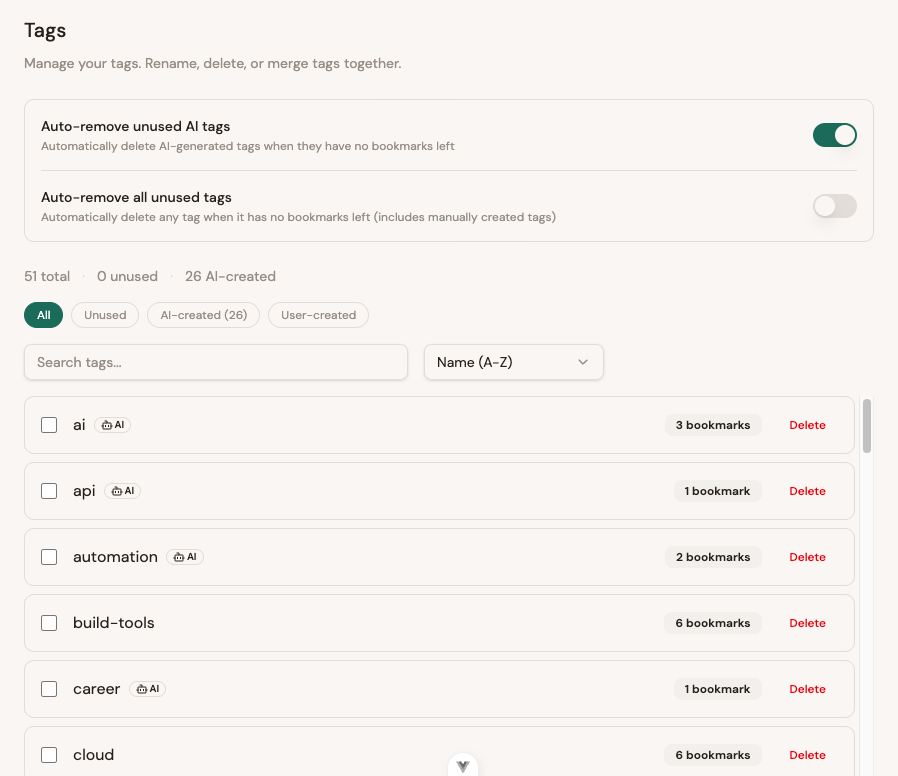
Head to Settings > Tags to see your entire tag library in one place. A stats bar at the top shows the total count, how many tags are sitting unused, and how many were created by the AI tagger.
Filtering and searching
Below the stats you will find filter pills for slicing the list by category:

- All shows every tag.
- Unused shows tags with zero bookmarks attached. Prime candidates for cleanup.
- AI-created narrows the list to tags generated by the auto-tagger.
- User-created shows only tags you made yourself.
There is also a search box for finding a specific tag by name. You can combine search with a filter to drill down further, like searching for "react" within the AI-created view.
Renaming a tag
Click on any tag name to edit it inline. Press Enter to save or Escape to cancel. The rename takes effect everywhere instantly. Every bookmark that carried the old name will show the new one.
Deleting tags
Each tag row has a delete button on the right side. Deleting a tag removes it from all bookmarks but does not touch the bookmarks themselves.
Merging duplicate tags
Over time you might end up with tags that really mean the same thing: react and reactjs, or scaling and scalability. Instead of manually re-tagging every bookmark, you can merge them.
Select two or more tags using the checkboxes, and a toolbar appears at the bottom of the list:

Click Merge selected and pick which tag to keep as the target. All bookmarks from the source tags move to the target, the source tags are deleted, and the target's count updates to reflect the combined total.
Automatic tag cleanup
AI tagging can grow your tag library quickly. And when you delete bookmarks, the tags they carried might become orphaned. That is where automatic cleanup saves you some housekeeping.

Two toggles sit at the top of the Tags settings:
- Auto-remove unused AI tags (on by default) deletes AI-generated tags the moment they lose their last bookmark. Since these were created automatically, letting them go is usually safe. If you save a similar page later, the AI will just create the tag again.
- Auto-remove all unused tags (off by default) does the same for every tag, including the ones you created manually. Only flip this on if you are comfortable with tags vanishing as soon as they are empty. Most people leave it off and clean up by hand instead.
As a safety net, Stashmark runs a periodic background sweep that catches orphaned AI tags every few hours, just in case the real-time cleanup missed anything (say, a bookmark was deleted through the API or an import replaced your data).
One-click manual cleanup
Prefer to stay in control? When unused tags exist, a Clean up unused button appears in the tag management dashboard. Click it, confirm in the dialog, and every tag with zero bookmarks is removed in one go.
Searching with tags
Tags plug directly into the search bar. Use the tag: operator (or the # shorthand) to filter:
tag:rustor#rustfinds all bookmarks tagged "rust"tag:rust tag:databasefinds bookmarks with both tagstag:rust OR tag:gofinds bookmarks with either-tag:archivedexcludes a tag
Mix tag filters with anything else the search bar supports. For example, tag:react saved:1w status:inbox pulls up React-tagged bookmarks saved in the last week that you have not triaged yet.
Tips for keeping tags tidy
- Let AI handle the first pass. Auto-tagging is surprisingly good at picking relevant tags. Refine later if needed.
- Merge early, merge often. When you spot near-duplicates, merge them before they spread across more bookmarks.
- Leave AI cleanup on. The default setting quietly removes AI tags that are no longer attached to anything. Zero effort required.
- Check the Unused filter now and then. A quick glance helps you decide what to keep, what to merge, and what to toss.
- Pair tags with collections. Collections give you structure, tags give you flexibility. Use both. A bookmark can live in the "Work" collection and carry tags like
react,frontend, andperformance.
Questions about tags or ideas for new features? Drop us a line at hello@stashmark.app.